Thursday, July 4, 2013

recover deleted files


 Recover Deleted files, Undelete Files in Windows with Free Tools

Have you ever deleted a file that you did not wish to and wanted to recover it but did not find it in the recycle bin? You probably deleted it permanently with Shift+Delete or emptied the Recycle Bin. Now what? Don't worry, you may still have a chance to get it back. This article lists some free software that can recover deleted files from your hard drive or any other storage device instantly.

But how do the software mentioned below undelete deleted files?
recover deleted files
When files are deleted, Windows does not delete them from your hard disk. It marks the storage space as empty for new data to be written and deletes the index entry that tells the location of those files. Unless, new files are written on that space, the deleted files are still recoverable. That's what allows these software to recover deleted files. They just modify the data attached by Windows to deleted files to say these are 'regular' files.

There are many free software that allow users to do this. Some of them are given below:-

1) Pandora Recovery
recover deleted files in Windows
Pandora Recovery is a free software that offers a wizard based interface for recovering files. It allows you to browse a drive's individual folders to look for deleted files. It also allows you search for a deleted file based on its name, file size, creation date and last access time. Its deep scan allows you to recover files that other software might have missed. Although deep scan does not return a file's original name and location, it still is effective to recover data from drives with corrupted file tables and drives that were recently formatted. It can even recover data from CD's and DVD's.

2) TOKIWA DataRecovery
undelete files in Windows
At just over 200KB, TOKIWA DataRecovery is the smallest file recovery program in the market. It supports undeletion from FAT 12, FAT16, FAT32 and NTFS file systems. It also supports recovering NTFS compressed and EFS encrypted files. This software supports Windows and is portable as well. It also has a file shredder that allows you to wipe out files in a manner that they cannot be recovered again.

3) Recuva
undelete files
Another great freeware, Recuva offers a wizard based interface to unerase files. Recuva offers scanning deleted files based on their type (music, pictures, videos etc.). It also allows deep scanning in case a file you deleted is unrecoverable via normal search. Like TOKIWA DataRecovery, Recuva also offers securely deleting files. Recuva also has a portable version that you can keep in your flash drive.

All of these recovery software support recovery from memory sticks, digital camera cards and MP3 players. They support undeleting all types of pictures, software, movies and documents from both FAT and NTFS formatted drives . They work on Windows 8, Windows 7, Windows Vista and Windows XP.

Free File Recovery Software
Some important tips to increase the chances of getting your deleted files back:-

1) When a file is deleted accidentally on a storage device, make sure that you don't do anything on it as doing that would increase the chances of new data being written over your deleted files; which would make file recovery impossible.

2) If you have deleted files on your main computer (the one you are using right now), do not browse the internet, download new software or shut it down. Keep it running and go to another computer, download one of the software mentioned above that is portable and save it on a flash drive. Then plugin the flash drive in your current system and perform file recovery. Regardless of whether you accidentally delete files a lot or not, make sure to always have that software in your flash drive in case you accidentally delete important files.

3) If one software fails to recover your deleted file, it does not mean that another one wouldn't recover it too.

source:tweaksandtricks

Computer (PC) Tricks You Should Try Right Now


 Computer (PC) Tricks You Should Try Right Now

Computers have simplified our life to a great extent. Things that were impossible earlier can now be completed instantly thanks to computers. But, does this mean that a PC is all work and no play?

Obviously not! Here are some of the best tricks you can try out on your Windows based computer.

Computer Tricks
1) Make your computer speak what you type
You can use your PC's built in features and some VBScript magic to create a simple program that will make your computer speak whatever you input to it. What are you waiting for? Head over to this post to start a conversation.

2) Find your computer's gender
Want to know if your PC is a male or a female? Simple. Try the previous trick to know if your computer is a 'he' or a 'she'.

On a serious note, this depends upon the voice you have selected in Microsoft Text to Speech options.

3) Lock Folders with password
Do you often have other people seeing your personal files? You can store them in a password protected folder so that only you can access them. Go see this post to know how to protect your personal files effectively.

4) Make your computer greet you every time you start Windows
A simple modification in the first trick will let you have an awesome computer said welcome that you can use to impress all your friends. Just read this post to make your computer welcome you in its own mechanical voice.

5) Have fun with Notepad
PC Tricks
If you think that Notepad is just a basic text editor, then, you will be amazed by its capabilities. You can use Notepad to create everything from personalized logs to harmless viruses that are incredibly annoying. Go see this post to know just how useful Notepad is.

6) Command Prompt too has some tricks up its sleeves
So, you thought that Notepad has some tricks but not the command prompt? If you thought so, then you would be surprised to see all the cool stuff you can do with the Windows Command Prompt. Just see this post to get impressed.

7) Change your Processor's name
Are you bored of your old processor and want a new one with a staggering name? Change its name to something extraordinary to get that something special for your PC.

8) Make a Keyboard Disco
Use some VBScript coding to create a live disco using the LED keys on your keyboard. See this post to know how your keyboard can turn into a disco.

9) Use your Keyboard as Mouse.
You know you can use your mouse as keyboard using the On-screen keyboard. What if I tell you that it is also possible to do the reverse? Just read this post to see how.

source:tweak and treak

Tips to recover scratched CD's


Tips to recover scratched CD's

1. Spread a cloth on a flat surface and place the CD on it.
2. Then, hold the disc with one hand, use the other to wipe the polish into the affected area with a soft cloth.
3. Wait for it to dry and buff using short, brisk strokes along the scratch, not across it.
4. A cloth sold to wipe spectacles or camera lenses will work super m8's.
5. When you can no longersee the scratch,, wash the disc with water and let it dry before playing. Intersting isnt it? Try it right now
I have used toothpaste with good effects before Ive also used car paint cutting compound on deeper scratches. It does leave lots of smaller scratches (as it is a cutting compound after all) but it will remove the worst scratches in most cases.
ya u r gng to b surely befinited by this Operation

* Fingermarks/prints cause 43% of disc problems!
* General wear & tear causes 25% of disc problems!
* Player-related issues cause 15% of disc problems!
* Remaining Others
 source:awersome computer tricks

delete administrator password


How to "Delete administrator Password" without any software

Method 1

Boot up with DOS and delete the sam.exe and sam.log files from Windows\system32\config in your hard drive. Now when you boot up in NT the password on your built-in administrator account which will be blank (i.e No password). This solution works only if your hard drive is FAT kind.

Method 2

Step
1. Put your hard disk of your computer in any other pc .Step 2. Boot that computer and use your hard disk as a secondary hard disk (D'nt boot as primary hard disk ).Step 3. Then open that drive in which the victim’s window(or your window) is installed.Step 4. Go to location windows->system32->configStep 5. And delete SAM.exe and SAM.log
Step 6. Now remove hard disk and put in your computer.
Step 7. And boot your computer 

source:awersom computer tricks

Facebook tricks


Top 10 Facebook tips

Below is a listing of our top 10 tips for the popular social networking website Facebook.
Hide users, games, polls, etc.
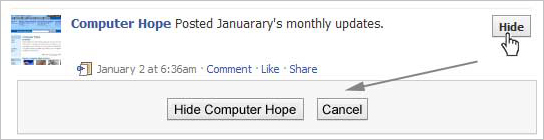
It quickly gets annoying seeing some users posts, game invites, polls, etc. Hovering your mouse to the right of the post and clicking the Hide button as shown below can hide any post. Once this button is pressed you'll be prompted with the option to hide that user or in the case of a Facebook application the option to hide that application from ever showing up on your profile.
Hide Facebook users, games, polls, etc.
To unhide someone or unblock an application click the Edit Options link in the bottom right corner of the news feed as shown below.
Facebook unhide friends
Greasemonkey and FB Purity
Although Facebook does not allow the ability to hide friends getting new friends messages, friends becoming fans of something, and some application messages they can still be hidden with browser add-ons. If you're running Mozilla Firefox, Chrome, Opera, or Safari we suggest installing the Facebook Purity add-on.
Update your privacy settings
Click Account in the top right corner of the Facebook window and then click Privacy settings to adjust who is capable of seeing what on your Facebook profile. We highly recommend going through all the privacy settings to verify your privacy is properly protected.
Anything that is not set to friends only or friends of friends can be seen by anyone searching on the Internet. Below is a few things we recommend for most users.
  1. Under Search in Privacy settings uncheck Public Search Results. This will prevent users from finding your account and profile picture in search results such as Google
  2. Under Application settings, make sure you're only allowing applications you want to have access to your information. Applications that you grant rights to can have access to your Facebook profile information.
  • If you're curious to see how a program or web page connect to the Facebook API can see your profile see Tip135.
Use the Facebook top bar for navigation
Facebook navigation
Knowing how to properly navigate is vital if you want to get the most out of Facebook. Below is a brief description of each of the available options in the top bar as shown above.
Home (facebook logo) - Clicking this logo will take you to your wall (News Feed) that shows all friends recent posts.
Friend requests - If any friend requests are waiting to be approved this icon will show a notification of how many friends are waiting for approval. This icon can also be clicked when you want to view any friend recommendations or search for friends on Facebook.
Messages - This section allows you to send and receive private messages between one or more people you're friends with.
Notifications - Any time a friend or Facebook application creates a new post you'll be notified in this section. Clicking this icon will show all recent notifications. If you wish to change what is capable of sending you notifications including any Facebook applications or games click the See All Notifications link at the bottom and check or uncheck what you want to be notified on.
Search - Finally, the search box in Facebook can be a powerful tool that can be used to quickly find any current friends or people on Facebook. In addition searching for terms such as a company name, product, sports team, music band, etc. will find fan pages and groups that can be joined.
Modify your account notifications
Keep your e-mail and your cell phone clean by updating or eliminate Facebook notifications or keep more up-to-date by adding new notifications. Facebook notifications can be added and removed by clicking Account link in the top right corner, then Account Settings, and then clicking the Notifications tab.
Top News and Most Recent
Facebook News and most Recent
By default Facebook will display your wall postings in the News format, which means it only displays posts it believes are most relevant to you. These results are based on your past interaction with your friends. If you want to see every post made by all your friends that are not hidden click the Most recent link in the upper right section of your news feed as shown in the above picture example.
If you want to adjust who shows up manually click the Edit Options in the bottom right corner of your news feed.
Facebook unhide friends
View High School work friends
If you've added your High School or previous Work locations to your profile, quickly see all classmates and co-workers on Facebook by clicking the link in your Info tab under your profile.
Quickly change profile picture
Your profile picture can be quickly changed to any other picture by visiting your profile, hovering the mouse over your current profile picture, and clicking the Change Picture link that appears in the top right corner of the picture.
Don't post private information on friend's walls on in comments
When you make a post on a friend's wall or in any of their comments realize that any of their friends are going to be able to see that post. If you wish for something to remain only between you and a friend send them a Facebook message instead.
Suggestions and random friend invites
As you get more friends on Facebook it will begin making friend, groups, and fan suggestions. These are suggestions made by Facebook and not your friends. Unless these are something you're interested in they can be ignored.
This same rule can be applied to people who may want to be your friend that you don't know. If you don't know someone don't accept his or her friend invite. Once someone becomes your friend they'll have access to any information your friends are capable of seeing.
Tag your Facebook friends in your photos
Always make sure to tag any of your Facebook friends that are in pictures you upload. However, never tag someone who is not in the picture. When someone is tagged in a photo that picture is automatically added to that persons profile and is a great way to share pictures with all friends.

source:computer hope

10 internet tips and tricks


op 10 Internet tips and tricks

You don't need the http:// portion of a web page
When typing an Internet address you do not need to type http:// or even www. in the address. For example, if you wanted to visit Computer Hope you could just type computerhope.com and press enter. To make things even quicker, if you're visiting a .com address you can type computerhope and then press Ctrl + Enter to type out the full http://www.computerhope.com address.
Quickly move between the fields of a web page
If you're filling out an online form, e-mail, or other text field you can quickly move between each of the fields by pressing the Tab key or Shift + Tab to move back a field. For example, if you're filling out your name and the next field is your e-mail address you can press the Tab key to switch to the e-mail field.
Tip: This tip also applies to the buttons, if you press tab and the web developer has designed correctly the button should be selected and will allow you to press the space bar or enter to push the button.
Tip: If you have a drop-down box that lists every country or every state you can click that box and then press the letter of the state or country you're looking for. For example, is a drop-down box of States in the United States you could press u on the keyboard to quickly scroll to Utah.
Use Internet search engines to their full potential
Make sure to get the most out of every search result. If you're not finding what you want try surrounding the text in quotes. For example, if you were searching for 'computer help' this actually searches for pages that contain both computer and help and not necessarily pages that have computer and help next to each other. If you search for "computer help" with the quotes around the search query this will only return pages that actually have computer and help next to each other.
Tip: Many new computer users also don't realize that in every search box you can press enter instead of having to move the mouse button over to the Search button.
Protect yourself and avoid bad web sites
Know your Internet browser shortcuts
There are dozens of different shortcut keys that can be used with Internet browsers. Below are a few of our top suggested Internet browser shortcuts.
- Pressing Alt + D in any major Internet browser will move the cursor into the address bar. This is a great way to quickly enter an Internet address without having to click the mouse cursor in the address bar.
- Hold down the Ctrl key and press the + or - to increase and decrease the size of text.
- Press the backspace key or hold down the Alt key + left arrow to go back a page.
- Press F5 to refresh or reload a web page.
- Press F11 to make the Internet browser screen full screen. Press F11 again to return back to the normal view.
- Press Ctrl + B to open your Internet bookmarks.
- Press Ctrl + F to open the find box in the browser to search for text within the web page you're looking at.
Take advantage of tabbed browsing
Take full advantage of tabbed browsing in all Internet browsers today. While reading any web page if you come across a link you may be interested in open that link in a new tab so it can be viewed later. A new tab can be opened by holding down the Ctrl key and clicking the link or if you have a mouse with a wheel click the link with the middle mouse button.
Try alternative browsers
Most computer users use the default browser that comes included with the computer, with Microsoft Windows this is Internet Explorer. There are several great alternative browsers that are all free to download and use and may have features your current browser does not include. Below are a few of our favorites, try one or try them all.
Install plugins and add-ons
Each of the above alternative browsers also have a large community of volunteers who develop add-ons and plugins that can be added into the browser. Each of these browsers have hundreds of thousands of these add-ons that can do such things as giving you live weather in your browser window, changing its color, and adding additional functionality.
Make sure your browser and its plugins are up-to-date
Each Internet browser can have several additional plugins that give it additional functionality. For example, Adobe Flash is a great way to bring movies and other animated content to the Internet. Keeping these plugins up-to-date is vital for your computer stability and also security. Using the below tool you can quickly verify if your plugins are up-to-date and get links to where to download the latest updates.
Use online services
There are hundreds of free online services that can help make using your computer easier, more productive, and more enjoyable. See our top 10 online services for a listing of our favorites.

source:computer hope

keyboard shortcut keys


Top 10 keyboard shortcuts everyone should know

Top 10 keyboard shortcutsUsing keyboard shortcuts can greatly increase your productivity, reduce repetitive strain, and help keep you focused. For example, highlighting text with the keyboard and pressing Ctrl + C is much faster than taking your hand from the keyboard, highlighting the text using the mouse, clicking copy from the file menu, and then putting your hand back in place on the keyboard. Below are our top 10 keyboard shortcuts we recommend everyone memorize and use.
Ctrl + C or Ctrl + Insert
Copy the highlighted text or selected item.
Ctrl + V or Shift + Insert
Paste the text or object that's in the clipboard.
Ctrl + Z and Ctrl + Y
Undo any change. For example, if you cut text, pressing this will undo it. This can also often be pressed multiple times to undo multiple changes. Pressing Ctrl + Y would redo the undo.
Ctrl + F
Open the Find in any program. This includes your Internet browser to find text on the current page.
Alt + Tab or Alt + Esc
Quickly switch between open programs moving forward.
Tip: Press Ctrl + Tab to switch between tabs in a program.
Tip: Adding the Shift key to Alt + Tab or Ctrl + Tab will move backwards. For example, if you are pressing Alt + Tab and pass the program you want to switch to, press Alt + Shift + Tab to move backwards to that program.
Tip: Windows Vista and 7 users can also press the Windows Key + Tab to switch through open programs in a full screenshot of the Window.
Ctrl + Back space and Ctrl + Left or Right arrow
Pressing Ctrl + Backspace will delete a full word at a time instead of a single character.
Holding down the Ctrl key while pressing the left or right arrow will move the cursor one word at a time instead of one character at a time. If you wanted to highlight one word at a time you can hold down Ctrl + Shift and then press the left or right arrow key to move one word at a time in that direction while highlighting each word.
Ctrl + S
While working on a document or other file in almost every program pressing Ctrl + S will save that file. This shortcut key should be used frequently anytime you're working on anything important.
Ctrl + Home or Ctrl + End
Move the cursor to the beginning or end of a document.
Ctrl + P
Print the page being viewed. For example, the document in Microsoft Word or the web page in your Internet browser.
Page Up, Space bar, and Page Down
Pressing either the page up or page down key will move that page one page at a time in that direction. When browsing the Internet pressing the space bar will also move the page down one page at a time. If you press Shift and the Space bar the page will go up a page at a time.
Tip: If you are using the space bar to go down one page at a time press the Shift key and space bar to go up one page at a time.

source:computer hope

Windows 8 tricks


Top 10 Windows 8 tips and tricks

Customize your tiles
Windows 8 tilesMake the most of your Windows Start screen tiles by adjusting the sizes, where they are located, and what is listed.
  • Move any tile by clicking and dragging the tile. While moving a tile, if you need a larger view of the Start screen move the tile towards the top or bottom of the screen to zoom out.
  • Use your mouse wheel to scroll left-to-right through your tiles.
  • Any Desktop shortcut or program can be pinned to the Start screen by right-clicking the icon and choosing Pin to Start.
  • In the bottom right-hand corner of the start screen is a magnifying glass with tiles, click this icon to get a zoomed out view of your Start screen. In this view, if you right-click on a group of tiles you'll be given the option to name group, which can be useful if you have a group of related tiles (e.g. games). In this view, you can also click and drag a group to organize your tile groups.
  • Create a new speed bump between tile groups by moving a tile to a speed bump.
  • Resize any User tile or Live tile by right-clicking the tile and choosing resize.
  • If there is a tile you want on your Taskbar, right-click the tile and choose Pin to taskbar.
  • Show admin applications on the Start screen by clicking Settings in Charms, click Settings, and change the Show administrative tools from No to Yes.
  • In Internet Explorer 10, you can also pin any of your favorite web pages to your Start Screen.
Windows 8 keyboard shortcuts
Knowing at least some of the Windows 8 keyboard shortcuts will make your Windows 8 experience much more enjoyable. Try to memorize these top Windows 8 shortcut keys.
  • Press the Windows key to open the Start screen or switch to the Desktop (if open).
  • Press the Windows key + D will open the Windows Desktop.
  • Press the Windows key + . to pin and unpin Windows apps on the side of the screen.
  • Press the Windows key + X to open the power user menu, which gives you access to many of the features most power users would want (e.g. Device Manager and Command Prompt).
  • Press the Windows key + C to open the Charms.
  • Press the Windows key + I to open the Settings, which is the same Settings found in Charms.
  • Press and hold the Windows key + Tab to show open apps.
  • Press the Windows key + Print screen to create a screen shot, which is automatically saved into your My Pictures folder.
See our Windows shortcuts page for a full listing of all Windows shortcuts.
Know your hot corners
The corners on your screen are hot corners and give you access to different Windows features. Below, is a brief explanation of each of these corners.
Bottom Left-hand corner
The bottom left-hand hot corner of the screen will allow you to access the Start screen, if you're in the Start screen and have the Desktop open, this corner will open the Desktop from the Start screen.
Tip: Right-clicking in the left hand corner will open the power user menu.
Top-left corner of the screen
Moving the mouse to the top-left corner and then down will display all the apps running on the computer. Clicking and dragging any of these apps to the left or right-hand side of the screen will snap that app to that side of the screen. Each of these open app icons can also be right-clicked to close or snap.
Right-hand side of the screen
On the full right-hand side of the screen will be given access to the Windows Charms.
Taking advantage of search
The Search in Windows 8 has been significantly improved when compared to all previous versions of Windows. To search for a file or run a program in Windows 8 from the Start screen just start typing what you're trying to find or want to run.
As you begin typing, the results will start appearing on the left-hand side. In addition to being able to search for files and run programs, the Search also supports limiting the search to apps such as Finance, People, Maps, Photos, Mail, Music, Videos, Weather, and much more. If what you are searching for is not a file or program, click on the app you wish to use as the search. For example, if you were searching for "New York" and selected the Weather App you would be shown the weather in New York, NY.
By default, Search organizes the available Apps by how frequently they are used and then in alphabetical order. If you want to keep your favorite app at the top of the Search list, right-click the app and choose Pin. Pinning the app will lock it in place regardless of how often it is used. If there is an app you don't want (e.g. Finance) you can turn on and off any of the search apps through the PC settings, which is found under the Settings in the Charms.
Bonus tip: The Search is also found through Charms and can also be opened by pressing Windows key + F.
Running two apps side by side
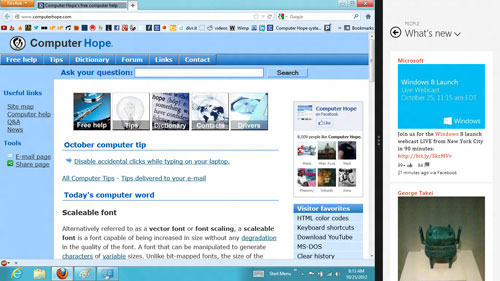
Any app can be pinned to the left or right-hand side of the screen. For example, open the People app and then press the Windows Key + . (period) to move that app to the right-hand side of the screen, pressing the same keys again will move it to the left-hand side, and pressing the same keys again will make it full screen. While an app is pinned, any other app or program can be opened and loaded into the available space on the screen. For example, in the below picture, we've opened a browser window and have the People app running to monitor our social networks.
Windows 8 People
Any open app can also be pinned using your mouse by clicking at the top of the tile and dragging it to the left or right-hand side of the screen.
Bonus tip: The Desktop can also be pinned to the left or right-hand side of the screen.
Note: In order for snap to work properly your resolution must be at least 1,366 x 768.
Windows 8 Task Manager
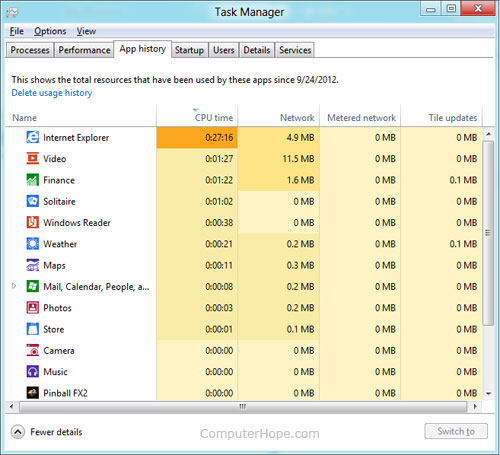
The Windows 8 Task Manager has been significantly improved over previous versions of Windows. Some of the new changes include showing a total percent usage at the top of your Processes, which makes it easier to determine total memory and CPU usage, improved Performance graphs, a Startup tab to see startup processes and their impact to system performance, and the App history tab (as shown below) that gives you the total resources an app has used over a period of time. Press Ctrl + Shift + Esc to start exploring the new Task Manager.
Windows 8 Task Manager
Use a picture password to log into your computer
Windows 8 includes a new feature called Picture password, which allows you to authenticate with the computer using a series of gestures that include circles, straight lines, and taps. Enable this feature if you want a new way to access your computer or have a hard time with passwords.
  1. Open the Windows Charms.
  2. Click Settings and then More PC settings
  3. In the PC settings window click Users and then select Create a picture password
Bonus tip: A four digit pin password can also be created and used to access your computer.
Take advantage of Windows 8 apps
Windows 8 comes included with several apps to help you get the most from your computer. Below are just a few of the included apps.
People
Microsoft touts the People feature in Windows 8 because they understand how many people are using social networks today. In the People feature you'll be able to connect your Windows computer to all the major social networks including Facebook, LinkedIn, and Twitter. Once connected, you can pin the people app and monitor your social network (as shown below), use People in Search to find people, and get an overview of what is happening in all your social networks.
Windows 8 People
Reader
The Reader app will give you PDF support right out of the box.
SkyDrive
The SkyDrive app will give you access to the Microsoft cloud service SkyDrive, which allows you to store your photos, documents, and other files in the cloud and access or share those files with any computer with Internet access.
Store
Take advantage of the Windows Store and install one or more of the thousands of available apps designed for Windows 8. The Store is found in the Start screen, or use Search to search the Store app for any apps that you are trying to find.
Know the answers to common questions
Windows 8 is the biggest change to Microsoft Windows since the introduction of Windows 95, which was released all the way back in 1995. Since so many people have grown up with Windows, it can be difficult to transition to a new way of doing things. Below, is a short list of the most common questions previous Windows users will have.
Know the Jargon
Knowing all the new jargon introduced with Windows 8 will help improve your familiarity with Windows 8 and make it a more enjoyable experience. Below, are just a few links to the most commonly used Windows 8 terms.

google tricks


Top 10 unknown Google tricks

Below is a list of our top ten Google tricks many people who use Google don't know about.
Definitions
Pull up the definition of the word by typing define followed by the word you want the definition for. For example, typing: define bravura would display the definition of that word.
Local search
Visit Google Local enter the area you want to search and the keyword of the place you want to find. For example, typing: restaurant at the above link would display local restaurants.
Phone number lookup
Enter a full phone number with area code to display the name and address associated with that phone number.
Find weather and movies
Type "weather" or "movies" followed by a zip code or city and state to display current weather conditions or movie theaters in your area. For example, typing weather 84101 gives you the current weather conditions for Salt Lake City, UT and the next four days. Typing movies 84101 would give you a link for show times for movies in that area.
Track airline flight and packages
Enter the airline and flight number to display the status of an airline flight and it's arrival time. For example, type: delta 123 to display this flight information if available.
Google can also give a direct link to package tracking information if you enter a UPS, FedEx or USPS tracking number.
Translate
Translate text, a full web page, or search by using the Google Language Tools.
Pages linked to you
See what other web pages are linking to your website or blog by typing link: followed by your URL. For example, typing link:http://www.computerhope.com displays all pages linking to Computer Hope.
Find PDF results only
Add fileType: to your search to display results that only match a certain file type. For example, if you wanted to display PDF results only type: "dell xps" fileType:pdf -- this is a great way to find online manuals.
Calculator
Use the Google Search engine as a calculator by typing a math problem in the search. For example, typing: 100 + 200 would display results as 300.
Stocks
Quickly get to a stock quote price, chart, and related links by typing the stock symbol in Google. For example, typing: msft will display the stock information for Microsoft.

tricks


Computer Tips & Tricks Everyone Should Know

Many hardcore computer users might think themselves above learning new tricks, but there's always new things to learn that will help improve your skills. Our bet: you will find at least one useful thing here that you didn't know before.
Inspired and with the help of this AskReddit discussion, we’ve compiled some of the most handy computer tricks you might not be taking advantage of. Our ultimate goal is to help you become more productive by shaving valuable seconds off your workflow. Of course, you can always pass along these tips to your not-so-savvy friends and family members to help them become better PC users as well.

General Tricks

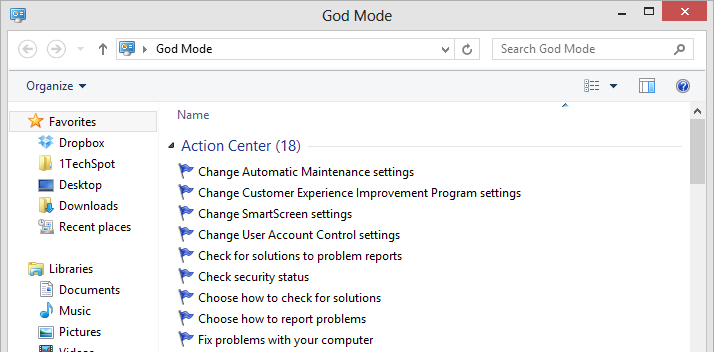
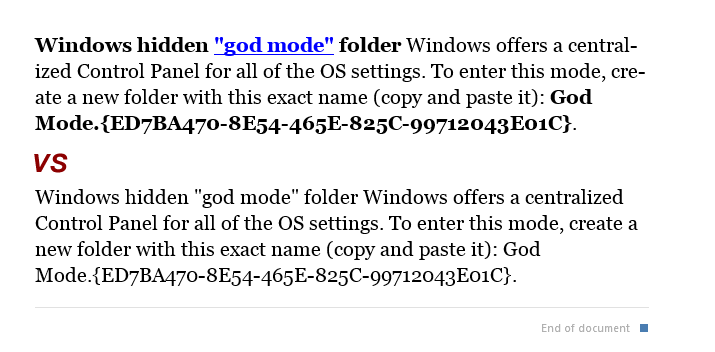
Windows hidden "god mode" folder Windows offers a centralized Control Panel for all of the OS settings, which makes it easy for users to tweak everything from desktop background to setting up a VPN. To enter this mode, create a new folder with this exact name (copy and paste it): God Mode.{ED7BA470-8E54-465E-825C-99712043E01C}. The folder icon will change to a Control Panel-style icon, and you will be able to jump in and change all kinds of settings. Note: Don't try this on Windows Vista 64-bit as it's known to cause a reboot loop.
Use Problem Steps Recorder This handy tool automatically records any mouse clicks and takes screenshots for you. If you need tech assistance with your computer, go to Run by typing Windows + R, and then type "psr." Use the tool and by the time you are finished, you can send this information, neatly compiled automatically, to the person helping you with the issue. It will make the process of finding the problem much easier for them, which means you will be able to get your system up and running faster.
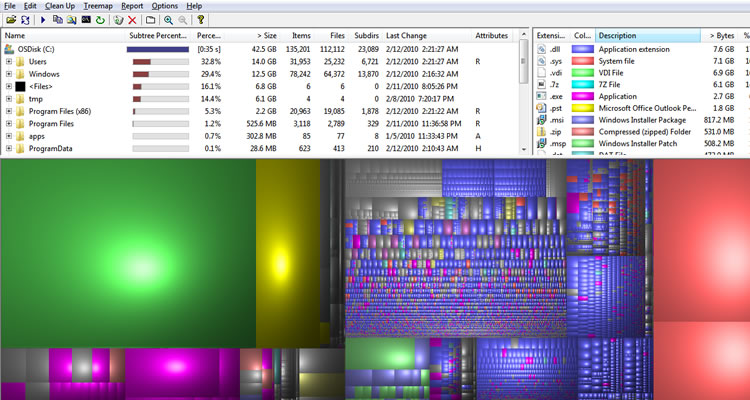
Find/Delete large files wasting space A handy tool called WinDirStat (Windows Directory Statistics) can be used to easily find which files and folders are taking up the most space on your drive. From there, you can delete them and open up a ton of storage space.
Reduce the number of programs running at startup If your PC is taking too long to boot, it’s probably because you have far too many programs running at startup. Reducing this is easy, it will make your PC launch noticeably faster and lighter upon first load. To change the items running at startup, go to Run using the hotkey Windows key + R, and type "msconfig." A small window will appear (see the screenshot below), select the Startup tab. From here you will be able to turn off many startup programs, which can shave several seconds (or minutes) off your boot time. (Note Windows 8 has moved this functionality to the Task Manager). Try to make sure you research what you are turning off as some processes might be needed by third party programs or drivers you have installed.

Cloud backup important files If you’re working on a critical paper for school, work, or any other major project, make sure you are backing up the file not just locally. You can use services like Dropbox, Google Drive, or any of the other popular cloud storage solution which will do the legwork for you on the background. Of course, you can also throw the files on a thumb drive or external HDD just to be safe but backing up to the cloud can be done seamlessly which is twice the advantage.
Typing Tricks

Delete an entire word Instead of deleting a single letter, pressing CTRL + BKSP will delete the entire word behind the cursor. This makes deleting text quicker if you screw up a whole word.
Move Cursor to beginning of the next or previous word Moving the cursor around manually while typing is a great way to make your work take longer than it needs to. To speed of the process, move the cursor around with keyboard shortcuts. To move it to the beginning of the previous word, use CTRL + Left Arrow. To move it to the beginning of the next word, use CTRL + Right Arrow. In OS X you can accomplish the same using the Option key.
Making sub and superscript text If you need to make sub or superscript text (think exponents for superscript), press CTRL + = for subscript and CTRL + SHIFT + = for superscript.
Paste plain text of what was copied When you copy text from any source, programs will usually copy any formatting that comes with it. To paste this as plain text, press CTRL + Shift + V instead of the standard CTRL + V, and the system will paste unformatted text.
Note that many programs follow this parameter (Chrome, Firefox, etc.) but not all, particularly Microsoft programs like Word or Outlook. For those there's a few alternatives that go beyond copying and pasting in Notepad: 1) CTRL + ALT + V will show a 'paste special' dialog box. 2) CTRL + Spacebar will remove formatting in already pasted text. 3) Download Puretext and choose a hotkey to always paste plain text with it.
Keyboard Shortcuts

Copy only active window to clipboard Normally, the Print Screen key copies the entire display (or two displays if you got them), ALT + Print Screen only copies the currently active window to the clipboard. Whether taking a screenshot to diagnose a problem, or just because you want to show something to a friend, this will come in handy.
Fix those little mistakes Did you know you can undo almost any action? CTRL + Z is the ultimate hot key, and for sure you knew about it already, however note that undo doesn’t just apply to typing. If you accidentally delete or move a file, you can hit CTRL + Z to bring it right back to where it was. In Chrome and Firefox you can also undo closing a tab using CTRL + SHIFT + T.
Cycle through open windows Pressing ALT+TAB allows you to cycle through currently open windows. This makes switching back and forth between running processes quick and painless. If you want a more stylish method of cycling through open programs, Windows + TAB will do the job for you.
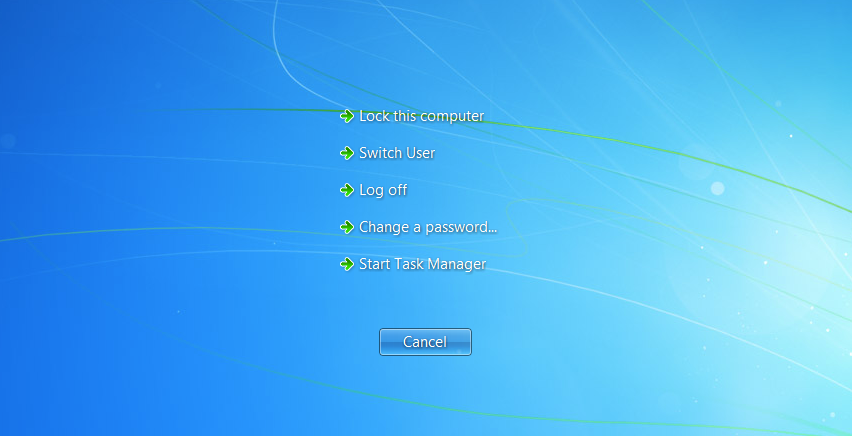
Interrupt all processes CTRL + ALT + Delete is one of the most common PC shortcuts, and one almost everyone is familiar with. The important thing to note is that it interrupts all processes, including the one that is bogging down your system, which can mean the difference between needing to restart or not.
Close the current program Typing ALT + F4 will close the program that is running. This is useful as it saves you time mousing over the "X" and clicking. People will often use this as a joke, telling you to press ALT + F4 to fix a problem. Don’t fall for it unless you want to close what you are doing.
Minimize all windows Sometimes you have a bunch of stuff running, and you want it all to go away so you can get to the desktop. Simply pressing Windows + D will minimize everything you have up, which will save you some time pressing the minimize button for each window. It should be noted that Windows + M offers similar functionality, but there is no undoing, so Windows + D is the more favorable approach.
Open the task manager directly If you want to bypass the interrupt that happens when pressing CTRL + ALT + DEL and jump right to the task manager, typing CTRL + Shift + ESC launches it directly.
Close the current window/tab Stick of moving all the way to that X button? Press CTRL + W and the current window will close. (Don’t do it now, or you will miss the rest of the tricks!)
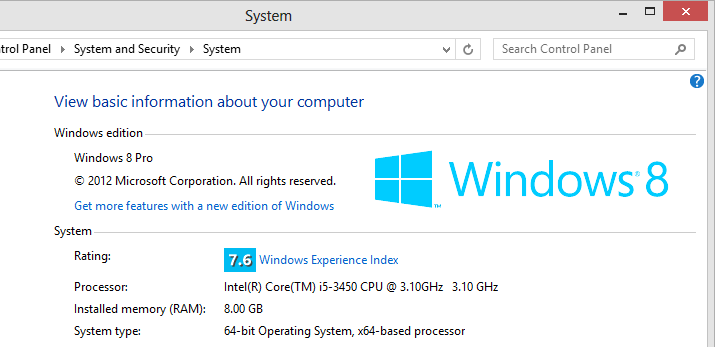
Bring up the system information window This is so much quicker than digging this out the traditional way... Just press Windows + Pause/Break and the System Information panel will be ready to go. This might be the only use for the Pause/Break key you will ever find, so enjoy it!
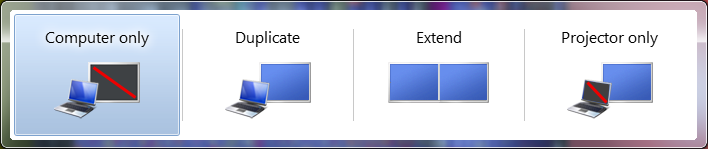
Better multiple monitor control There are several useful keyboard shortcuts for controlling open windows on multiple monitors. Pressing the Windows Key + Arrow Keys will cause a window to quickly snap to each side of either monitor. Alternatively, hitting Shift + Windows Key + Arrows will cause the window to jump to the other monitor. Lastly, pressing Windows + P will allow you to quickly set up a second display or projector.
Web Browsing Tricks

Automatically add www. and .com to a URL You can shave off a couple of seconds typing in a URL by simply click CTRL + Enter after you type the name of the site. Need .net instead of .com, press CTRL + Shift + Enter instead.

Jump to address bar There are a number of ways to jump right to the address bar from anywhere in browser. Pressing CTRL + L, F6, and ALT + D all accomplish this goal.
Bring back a closed tab We covered this already, but it's super useful. Accidentally closed a tab? Simply press CTRL + Shift + T to reopen the most recently closed tab and get back to what you were doing.
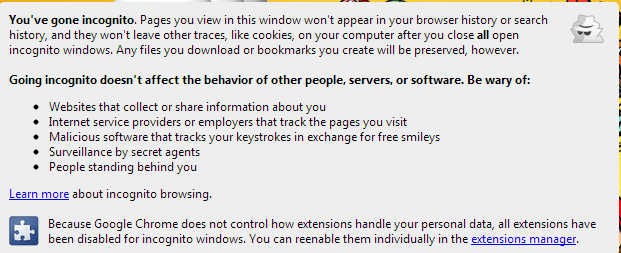
Use private browsing The uses for not having cookies and history saved are obvious for certain activities, you know, like shopping for gifts on a shared computer (of course!). Pressing CTRL + Shift + N will launch a new private in Chrome, CTRL + Shift + P will do it in Firefox and Internet Explorer.
Cycle through open tabs Pressing CTRL + TAB while in a browser will flip between each one. This can be much faster than moving the mouse and clicking on a tab. CTRL + NUM (1, 2, 3, 4, n..) will also take you to certain tab in that numeric order.

File Management Tricks

Rename a file quickly Right-clicking and selecting rename is not very efficient. Instead, simply press F2 while a file is selected to change its name. To alter the name of another file, type TAB without deselecting the current file.
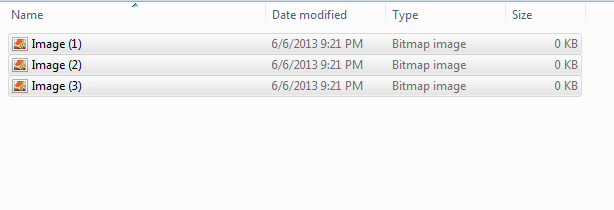
Rename files sequentially in Windows You actually don’t need to download any programs to perform a batch file rename in Windows. Instead, you can select all the files you want to change, right-click the first one in the list, select rename (or use F2), and type in the name. This will automatically change all the other files with the same root name with a suffix: (1), (2), and so on.
Select multiple files using the keyboard To select a bunch of files using your keyboard, you can press Shift + down arrow to select a single file or Shift + Page Down to select a large group of files at one time.

Security Tips

Run programs on an infected PC Often times, malware will prevent a computer from running certain programs. Changing the name of the .exe file can often override this. If that doesn’t work, changing the extension to .com is another useful alternative, and the program will still be able to run in spite of the extension change.
Read installers Even major programs can install toolbars and other unwanted pieces of software during installation. Take a few seconds to read each step to make sure you are not agreeing to install something other than the program you were actually seeking. Far too often people just push next over and over, and end up with a browser covered in various search bars that just aren't needed. In the worst of scenarios, these can have nefarious intentions.
Lock your computer if you get up Sick of your "friends" going onto your computer at work or home and posting things on your Facebook/Twitter page on your behalf? It’s certainly an annoyance, but an easy one to prevent. Windows + L will lock your system right away, requiring a password (if you've set one) to log in again.

Program-Specific Tricks

Photoshop: Drag the marquee without losing the ability to size it The marquee tool is, at its most basic level, designed for selecting a part of an image. It’s used constantly in Photoshop, and there is a handy trick many users miss. While dragging it around, you can press space, which will allow you to size it while moving it. This saves time by letting your perform two key functions at the same time.
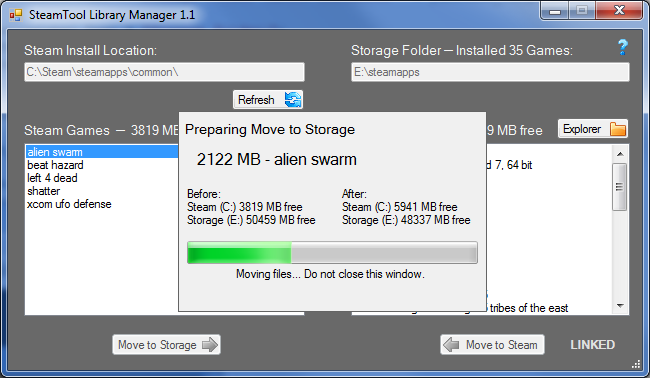
Steam: Move games to another drive or partition By default, Steam installs all games to the same HDD or partition, but what happens if that fills up? The solution: download Steamtool Library Manager. It makes it easy to move games to another hard drive without messing with the functionality of Steam.
VLC: Fix unsynced audio and subtitles In the popular media player VLC, if your audio loses sync with the video or subtitles, there is an easy way to fix this. Simply pressing J or K will move the audio forward or backwards. Similarly, to sync the subtitles you can press H or G.

The combination of using these tips and tricks on a daily basis will most certainly make your computer life much more enjoyable, or at least more practical. And so, did you learn a thing or two that you didn't know before?

source:techspot